
Keep the Office Moving.
Quick. Dependable. Built for Business.
These office printers pair speedy output with low toner costs and solid networking — so the whole team keeps working without waiting around.
- Quick on its feet — 30 to 50 pages a minute to keep busy desks supplied
- Roomy paper trays and high duty cycles made for nonstop, all-day use
- Wired or wireless networking so everyone on the team can share one device
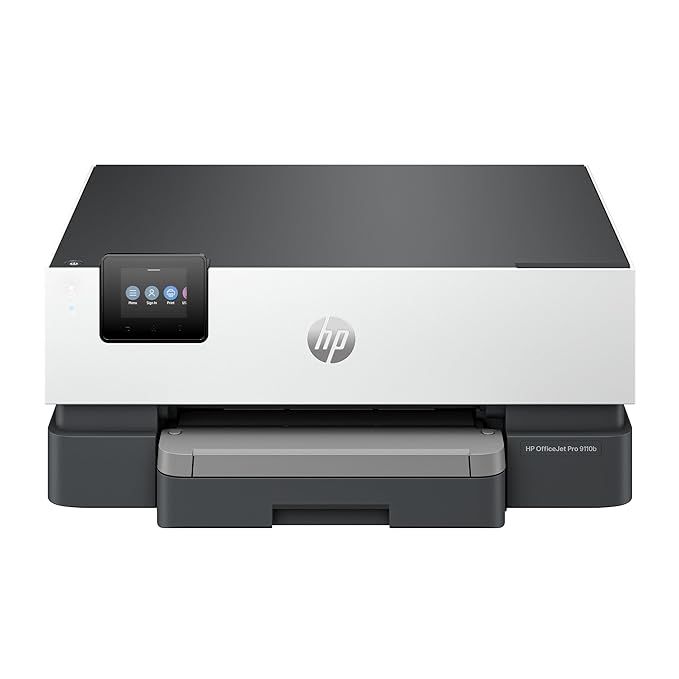

Office Printers
Workhorse printers made for heavy daily demand — quick, steady, and ready to join your network so the entire team stays productive.
Looking for other office printers?
Picking the Right Office Printer
Start by lining up the printer's monthly duty cycle with how much your team actually prints. From there, look for brisk speeds (30+ ppm), generous paper trays, and dependable networking everyone can tap into.

Shop
Office Printers
14 products
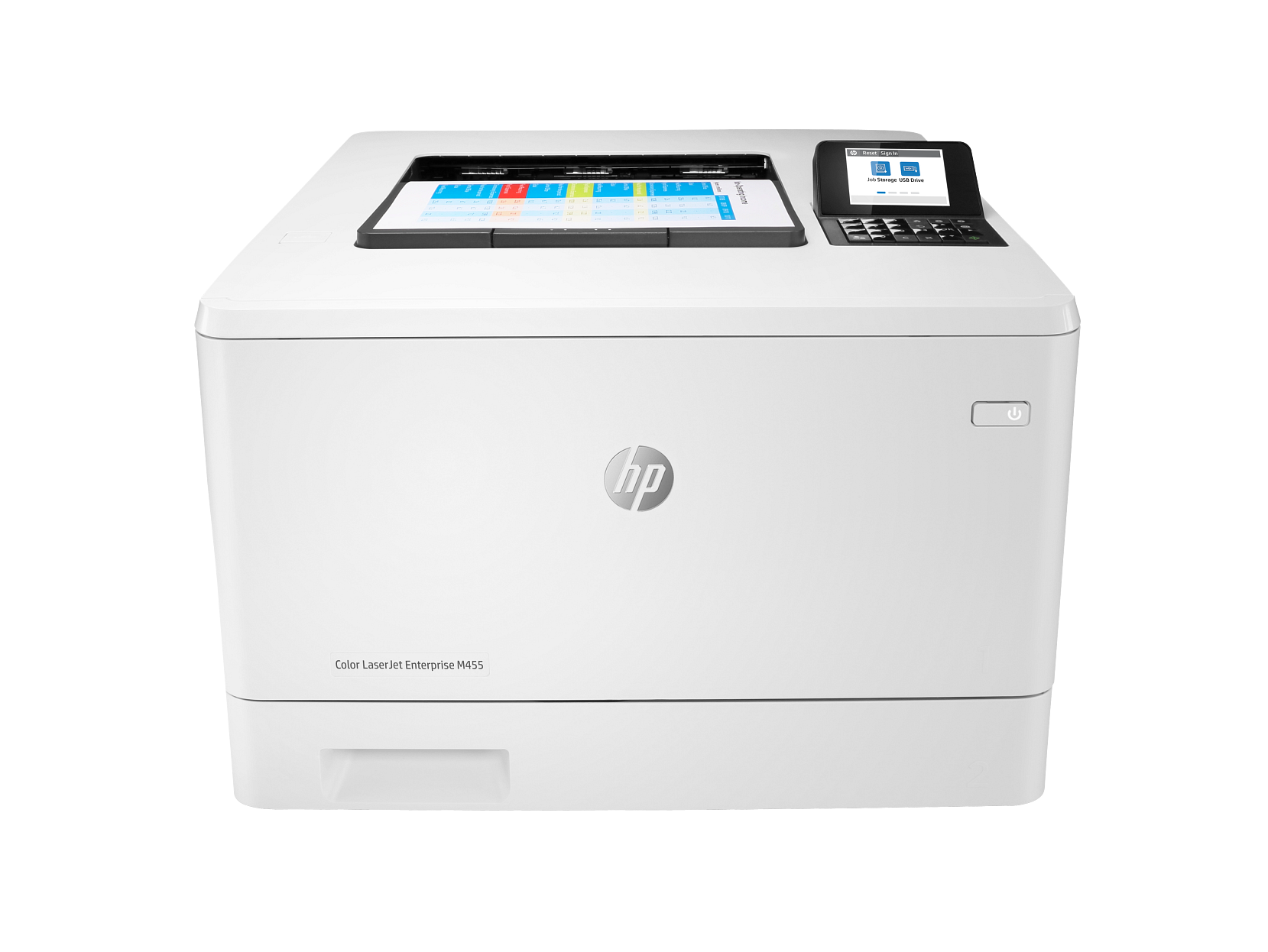
HP Color LaserJet Enterprise M455dn Color Laser Printer
$699.99
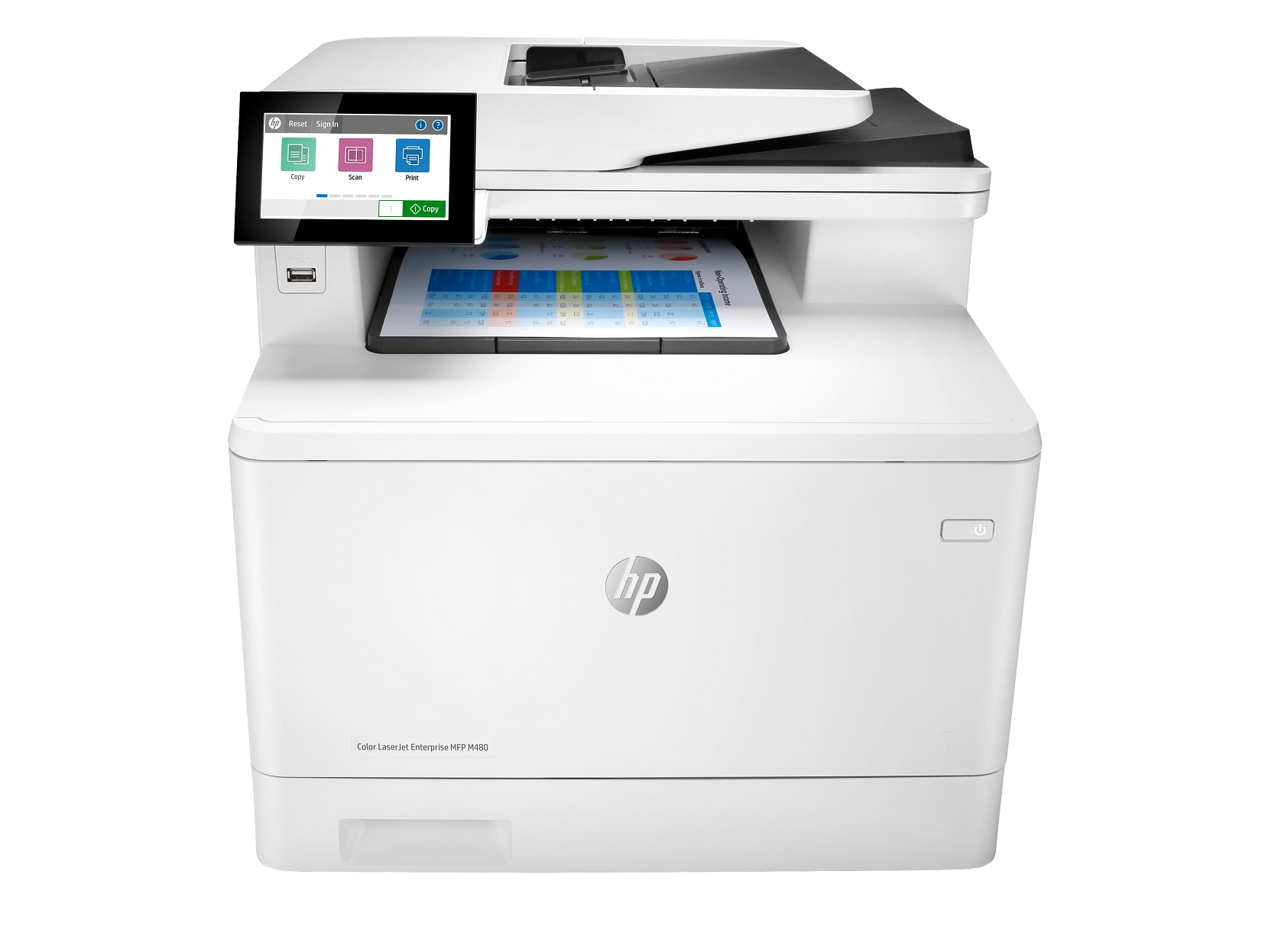
HP Color LaserJet Enterprise M480f Wireless All-in-One Printer
$849.99
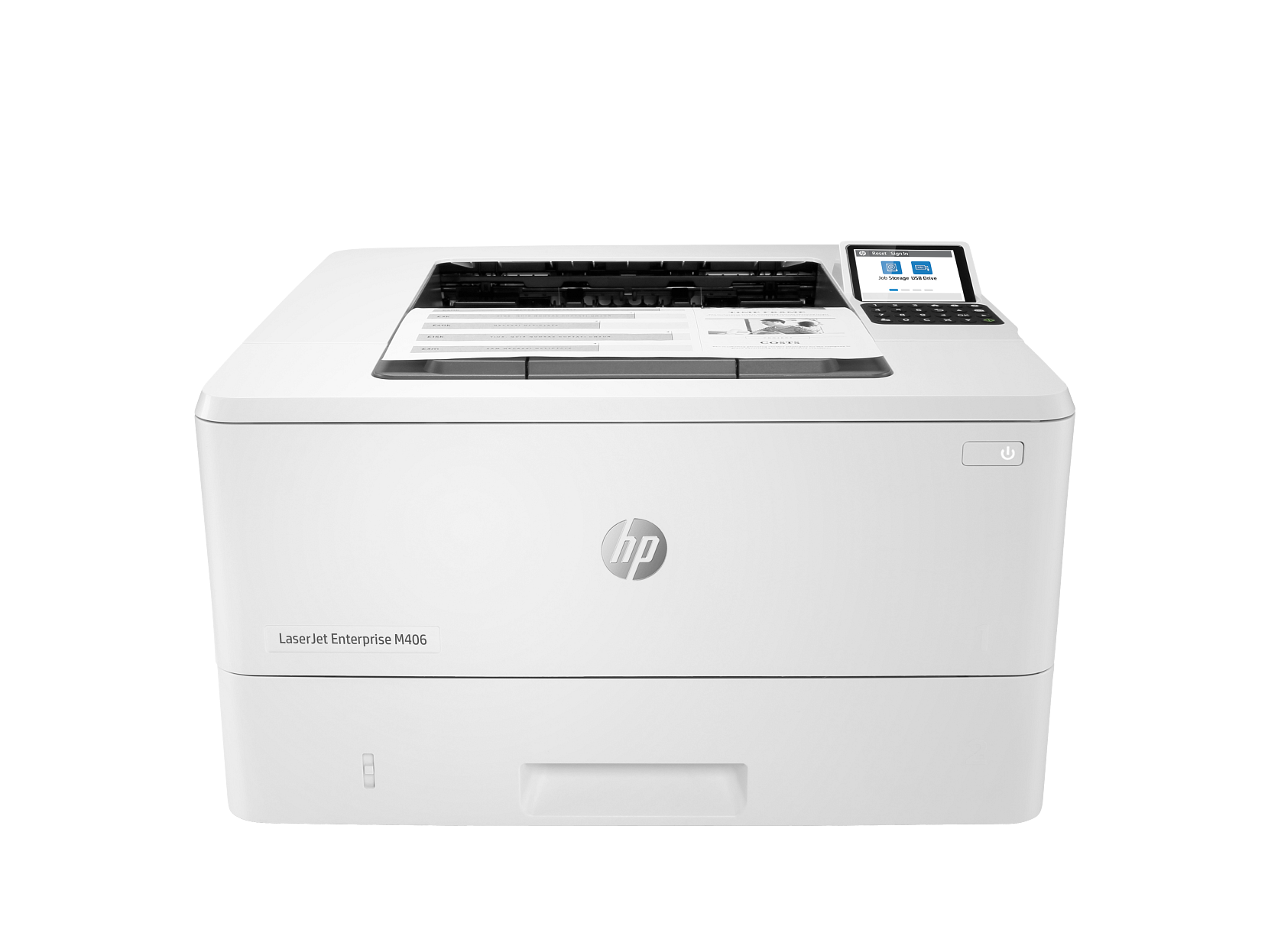
HP LaserJet Enterprise M406dn Monochrome Laser Printer
$549.99
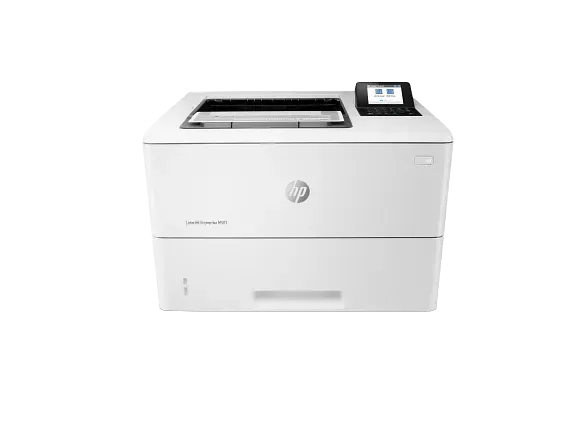
HP LaserJet Enterprise M507dn Monochrome Laser Printer
$749.99
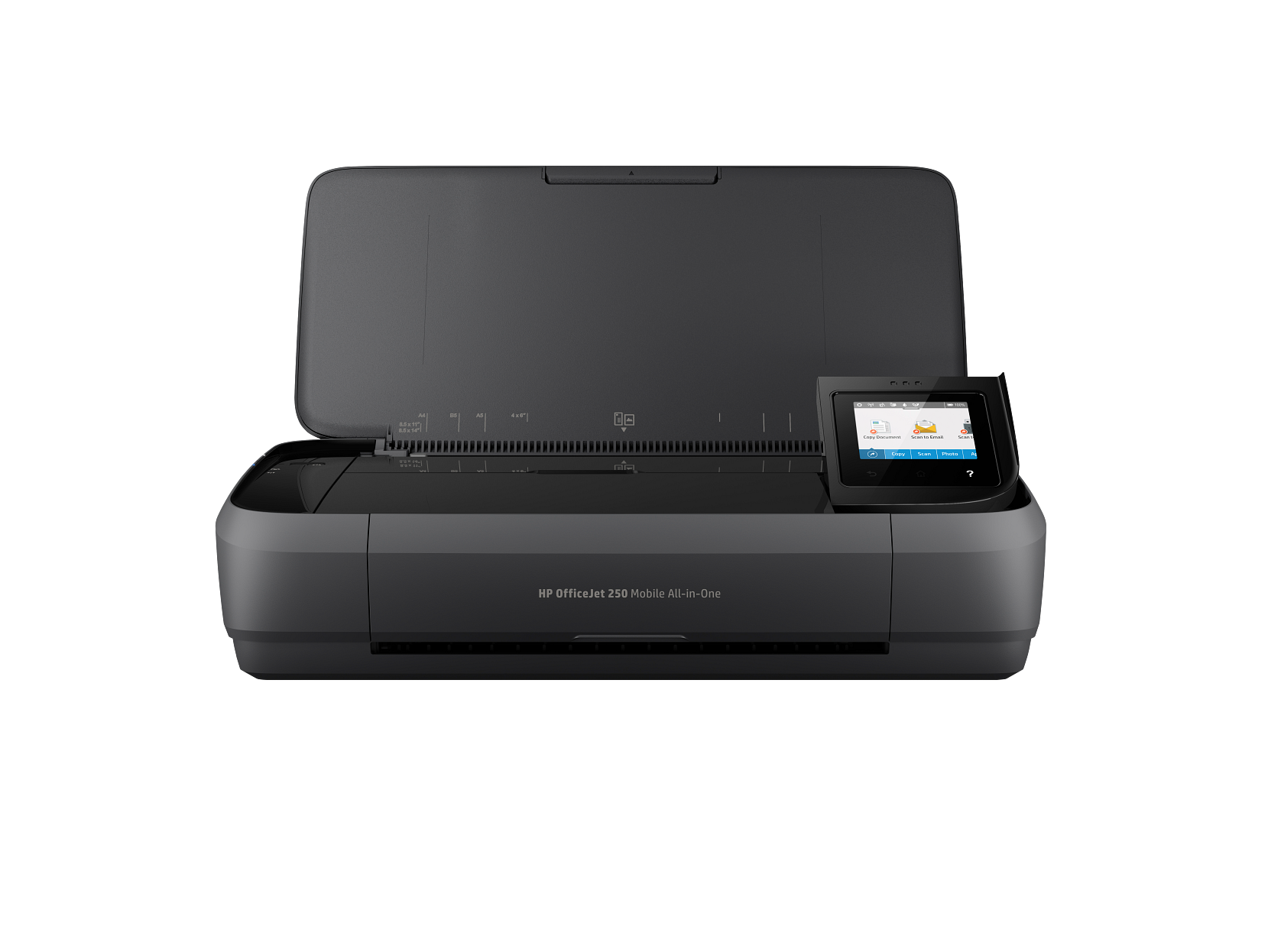
HP OfficeJet 250 Wireless Mobile All-in-One Inkjet Printer
$449.99
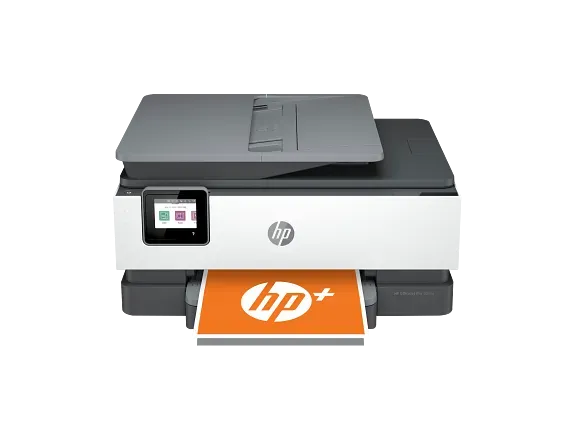
HP OfficeJet Pro 8035e Wireless All-in-One Inkjet Printer
$269.99
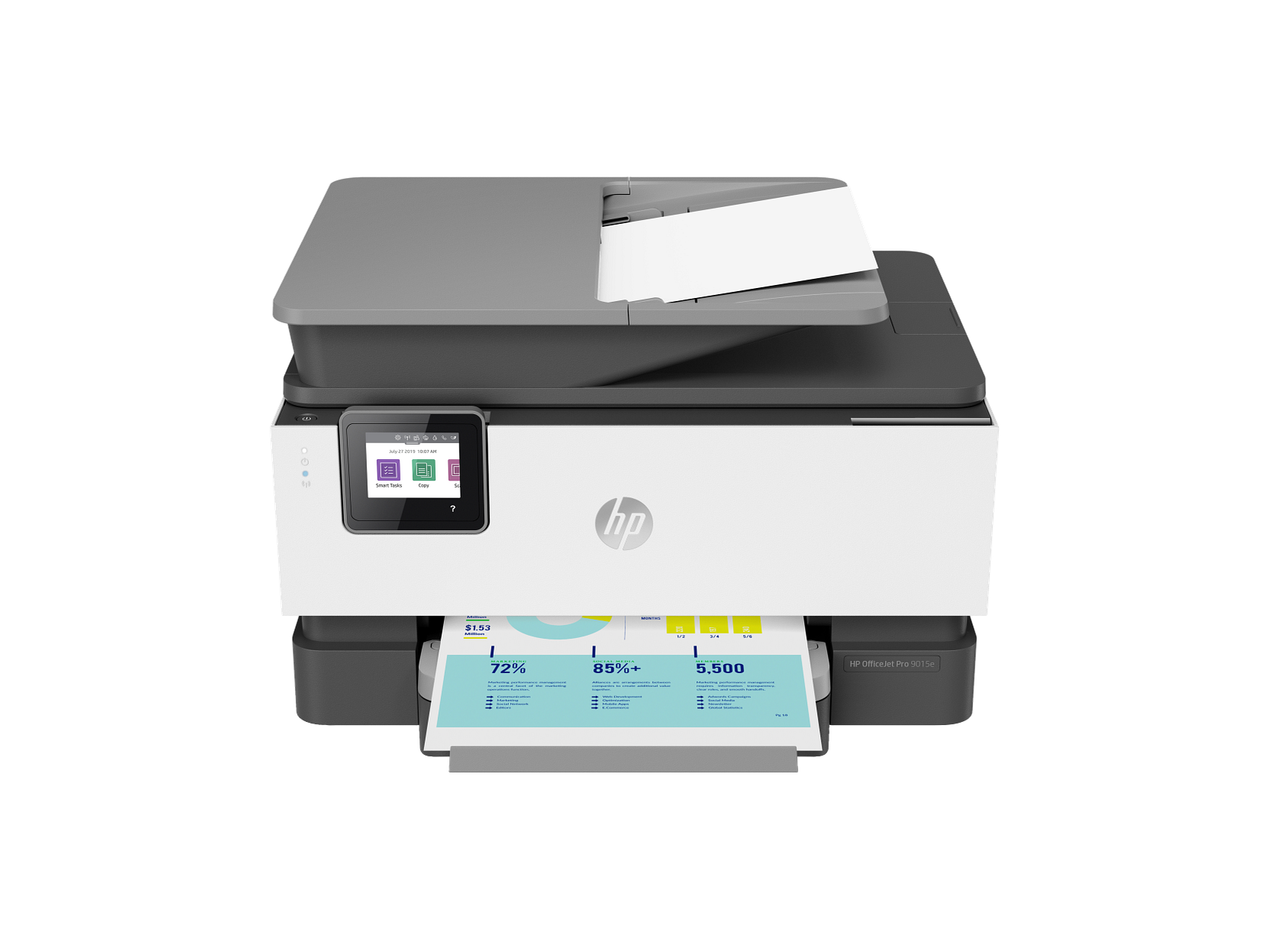
HP OfficeJet Pro 9015e Wireless All-in-One Inkjet Printer
$299.99
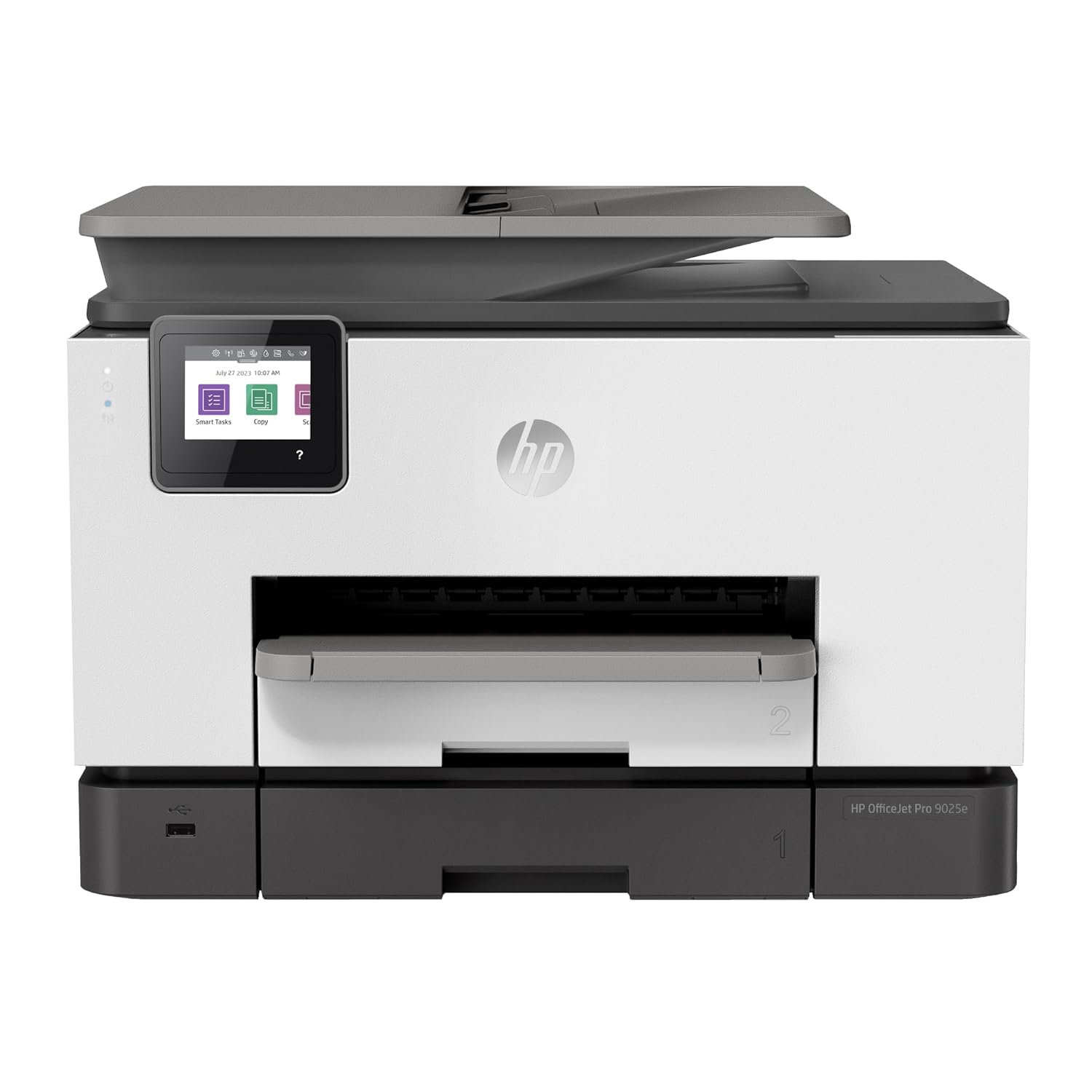
HP OfficeJet Pro 9025e Wireless All-in-One Inkjet Printer
$349.99
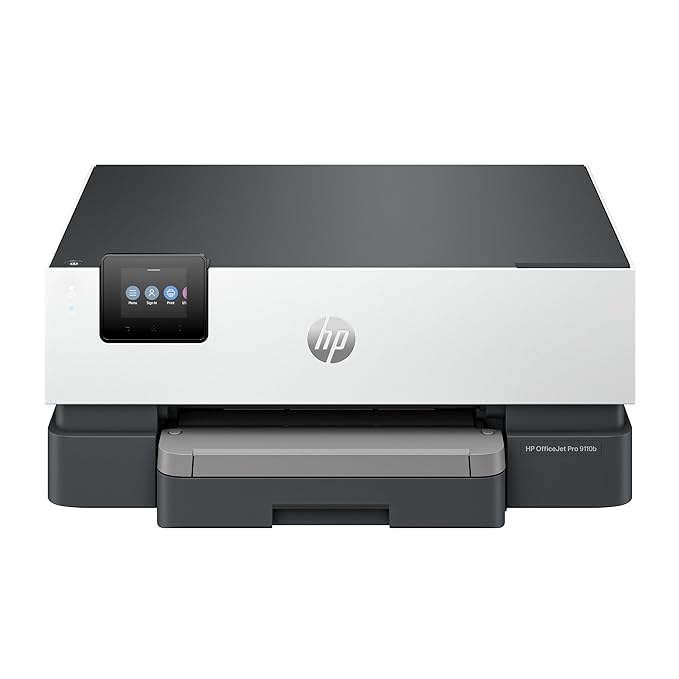
HP OfficeJet Pro 9110b Wireless All-in-One Inkjet Printer
$279.99
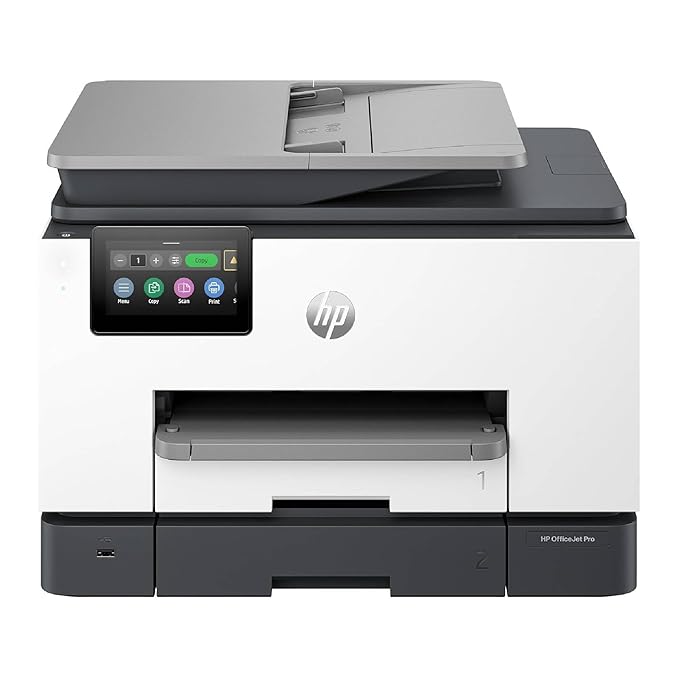
HP OfficeJet Pro 9120e Wireless All-in-One Inkjet Printer
$279.99
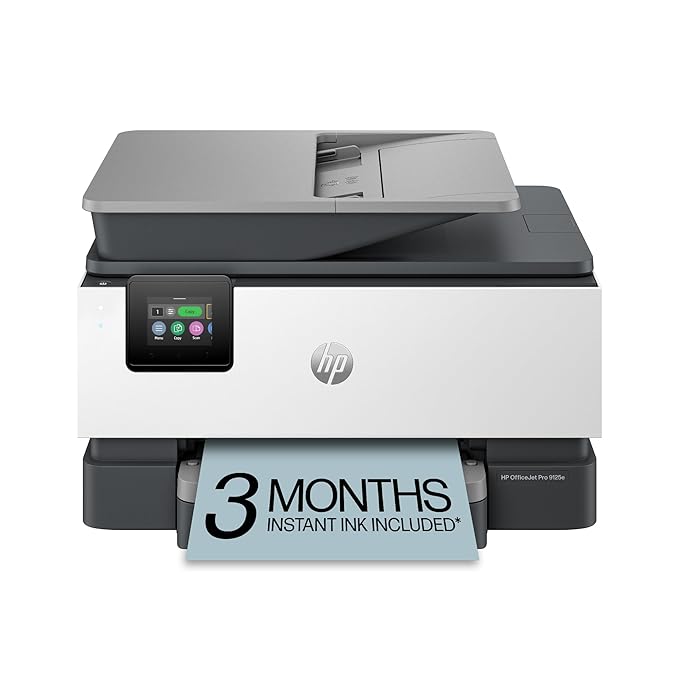
HP OfficeJet Pro 9125e Wireless All-in-One Inkjet Printer
$289.99
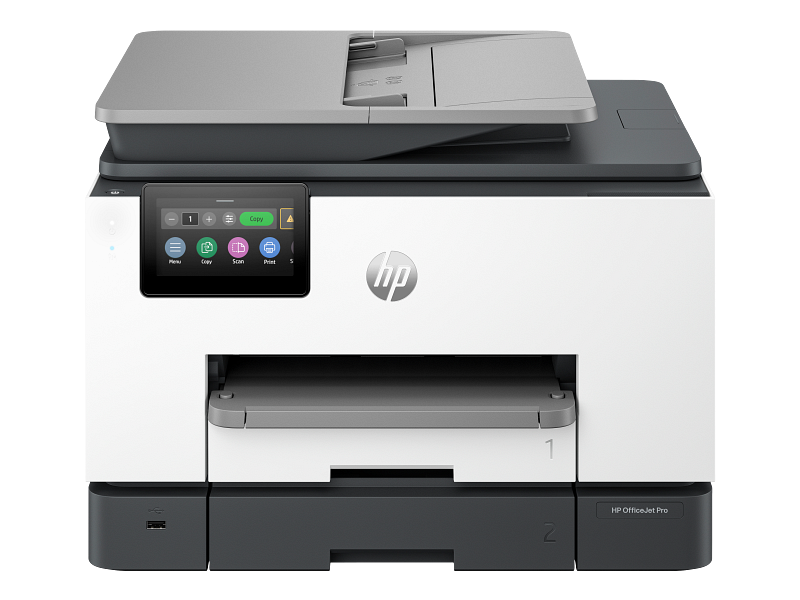
HP OfficeJet Pro 9135e Wireless All-in-One Inkjet Printer
$329.99
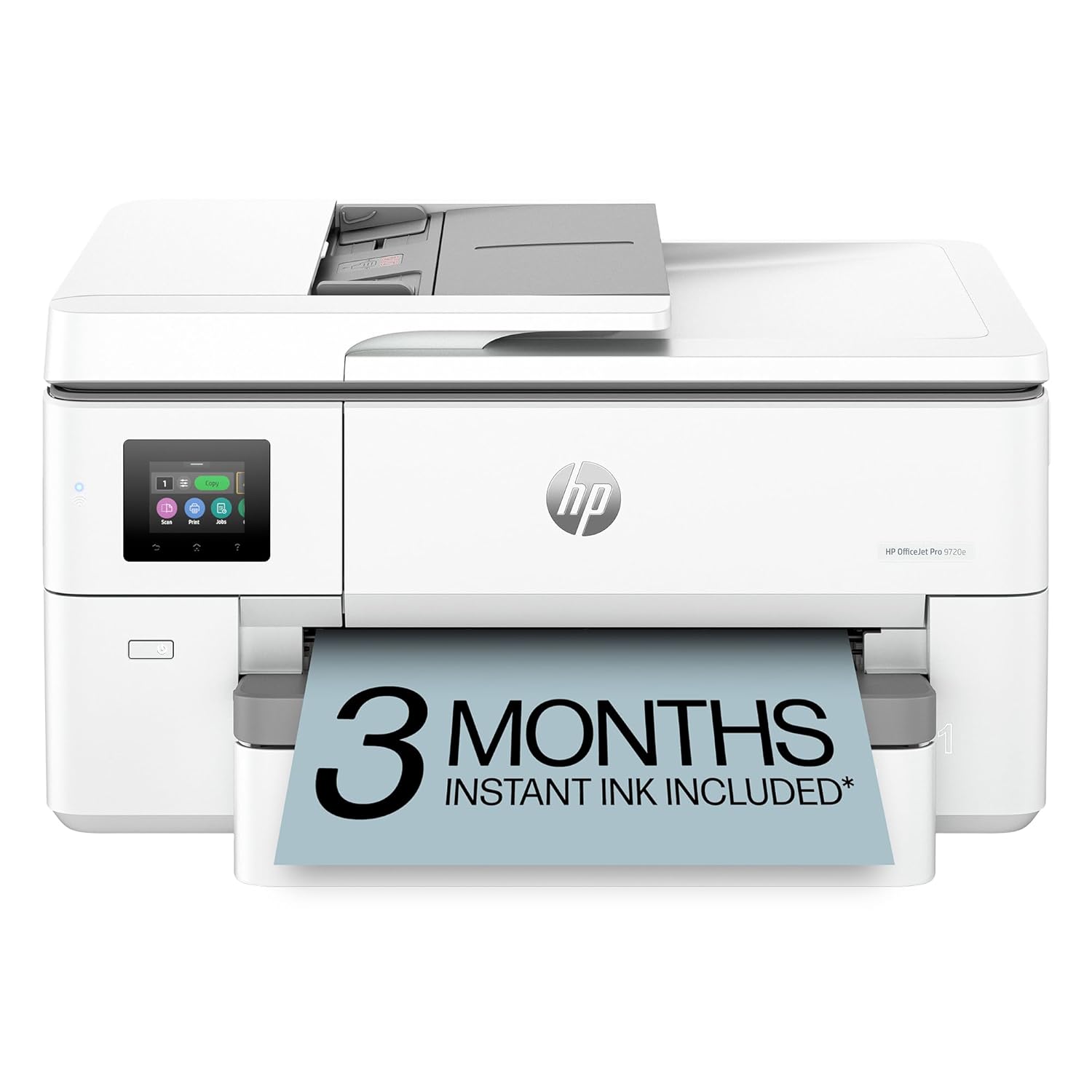
HP OfficeJet Pro 9720e Wide Format Wireless All-in-One Printer
$379.99
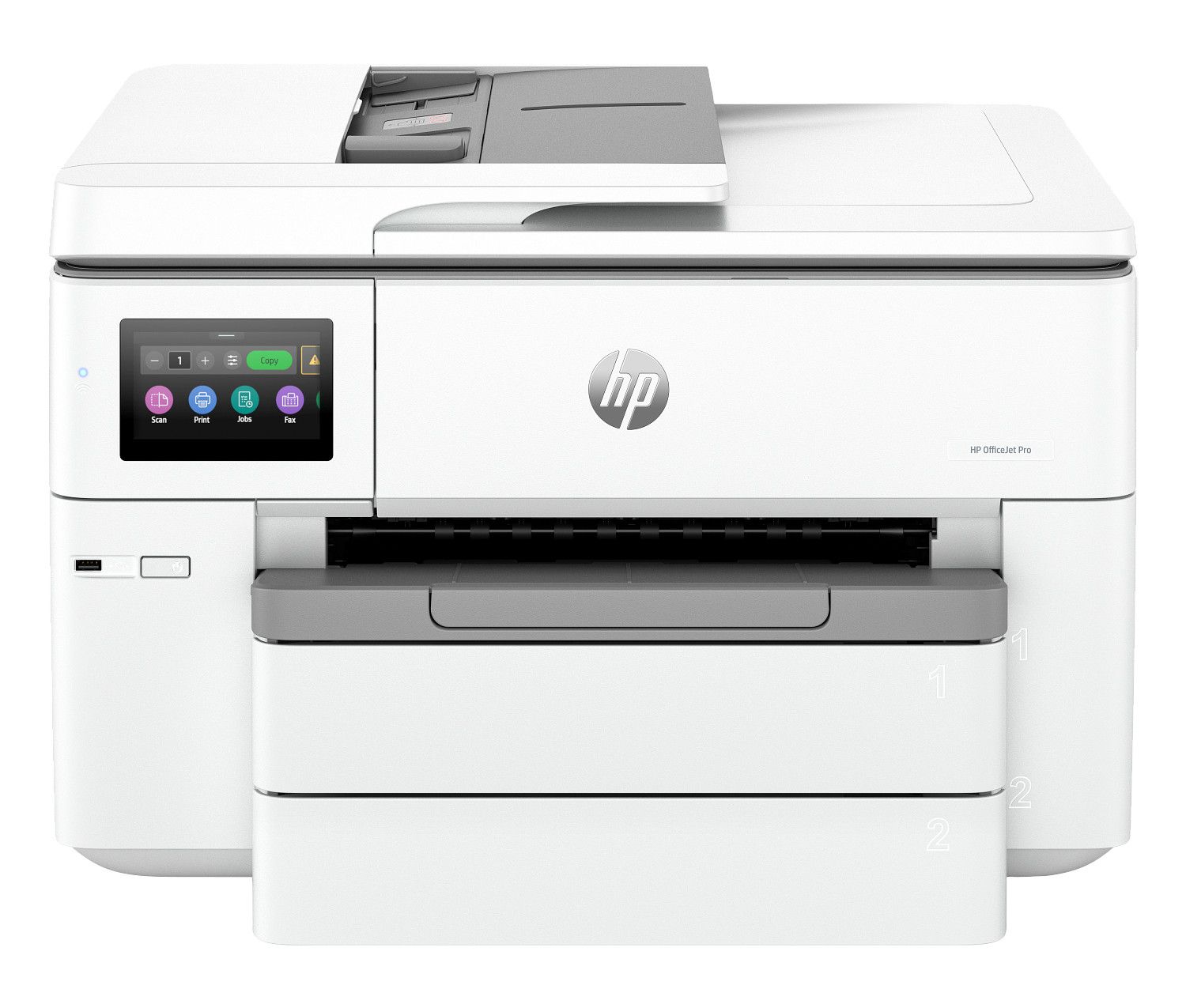
HP OfficeJet Pro 9730e Wide Format Wireless All-in-One Printer
$399.99
SHOP NOW
Explore Printers with Easy Wireless Setup & Smart Features
Browse printers designed for seamless connectivity — easy Wi-Fi setup, mobile printing through the HP Smart app, automatic drivers, and stable wireless performance for daily use.
01
Home Printers
Compact, budget-friendly, and simple wireless setup.
Shop Now02
Office Printers
High-speed, duplex, and network-ready for multiple users.
Shop Now03
All-in-One Printers
Print, scan, copy, and fax — ideal for homes and small offices.
Shop Now04
Laser Printers
Fast text printing with low cost-per-page.
Shop Now05
Inkjet Printers
Vibrant colors for photos and graphics.
Shop NowTip 1
Wi-Fi & Ethernet Ready
Wireless and network-ready models join any standard home or office network, so every device in the house can print — no cables required.
Tip 2
Mobile Printing Ready
HP Smart, Apple AirPrint, and Mopria support means direct printing from phones and tablets — compatibility is listed in every product's specs.
Tip 3
Automatic Driver Support
Modern models include manufacturer driver support for Windows, macOS, and Chrome OS, with automatic installation on first connection.
Before You Buy
Wireless Setup, Drivers & Connectivity — What to Look For Before You Buy
Easy Wi-Fi setup, built in
Every wireless printer we carry is designed for standard home and office networks, and most models make it simple to connect your printer to Wi-Fi for the first time with guided on-screen setup — no technical experience needed. If effortless wireless setup matters most, choose a model with a touchscreen display; first-time network connection is nearly automatic on those.
Stable connections that don't drop offline
Nothing is more frustrating than a printer that keeps going offline. Newer models with dual-band Wi-Fi and self-healing connections hold a reliable link to every phone, tablet, and laptop in the house — a feature worth prioritizing if your printer will sit far from the router.
Automatic driver installation
Every printer in this range includes full manufacturer driver support for Windows, macOS, and Chrome OS. Modern models install their own printer drivers automatically the first time they connect via USB or Wi-Fi — plug-and-play, with nothing to download manually. Buyers on older operating systems should check the supported OS list on the product page.
HP Smart app, AirPrint & mobile printing
Most current HP models work with the HP Smart app on iOS and Android for printing, scanning, and ink-level monitoring from your phone. If mobile printing matters to you, confirm HP Smart, Apple AirPrint, and Mopria support in the product specs before you buy.
Buyer's Guide
How to Choose a Printer for Your Home or Office
Focus on connectivity, print quality, and maintenance features.
Connectivity Options
A USB-only model suits a single desk, while Wi-Fi and Ethernet models serve every device on a home or office network — with HP Smart, AirPrint, and Mopria support covering mobile printing from phones and tablets.
Print Quality & Ink/Toner
Laser printers deliver sharp text for documents; inkjet printers excel at vibrant photos and colorful graphics. High-yield cartridges and ink-tank models keep the cost per page low for frequent printing.
Displays & Paper Handling
Models with front-access panels and straight paper paths are engineered to avoid paper jams, and an LCD or touchscreen shows plain-language status — ink levels, paper, connection state — at a glance.
Mobile App Integration
For frequent phone printing, HP Smart compatibility brings wireless printing, scanning, and ink-level monitoring — confirmed in each product's spec list.
FAQ
Printer Buying FAQ
Worth Paying For
Low-Maintenance Features Worth Paying For
The right features now mean a printer you never have to think about later:
Tip 1
Wireless that manages itself
Dual-band Wi-Fi, automatic reconnection, and strong antennas keep the printer online and available to every device — the single biggest difference between a printer you love and one you fight with.
Tip 2
Jam-resistant paper handling
Straight paper paths, front-loading trays, and tool-free access panels are the marks of a printer engineered to avoid paper jams — and to make the rare misfeed a ten-second interruption instead of a project.
Tip 3
Self-updating firmware
Many current models keep their own firmware current over Wi-Fi automatically — performance and connectivity improvements arrive with zero effort from you.
Tip 4
Clear status displays
An LCD or touchscreen that shows ink levels, connection state, and plain-language messages means you're never guessing what the printer needs.
Tip 5
Smart ink systems
Refillable Smart Tank models and high-yield cartridge support keep cost per page low and refill trips rare — the difference compounds fast for busy households and offices.